David King 16/02/2023 11:18:27Answers: 1
I’ve got my old tapes at home. Can’t I just transfer them myself?

Media SOS 17/02/2023 13:19:02

Some people try home transfers, but old tapes degrade over time. Moisture seeps into the layers, making the magnetic particles sticky. Playing them untreated can cause the signal to shed or stick inside your player, permanently reducing sound or picture quality, even if it seems to play “okay.”

Standard domestic players, even the best consumer models, produce results that are roughly half the quality of a professional transfer. Our professional process includes standard tape treatment and stabilisation before transfer, protecting your recordings and ensuring the best possible result.


Anne Turner 14/01/2021 21:02:41Answers: 1
I have a scanner at home. Is there any point paying for photo scanning?

Media SOS 15/01/2021 10:12:52

Home scanners can’t safely handle delicate slides or negatives. Dust, fingerprints, or surface debris can scratch or smudge originals, permanently reducing quality. We clean and scan each item with professional equipment, capturing full tonal range, colour, and detail, so your memories are preserved without risk of damage.


Robert Campbell 27/08/2020 17:57:23Answers: 1
Can I digitise my old cine reels using a projector and camera setup?

Media SOS 28/08/2020 09:07:00

It’s possible, but risky. Projectors can easily burn or snap fragile film, and camera recordings usually flicker, blur, and lose colour accuracy. Our professional cine scanners capture every frame in high resolution and correct exposure, colour, and speed digitally. Once transferred, your films are safe, as sharp as possible, and ready to share or edit.


Mary Gibson 10/07/2019 19:05:32Answers: 1
Can I clean and digitise my own vinyl records?

Media SOS 11/07/2019 09:29:11

Vinyl grooves often collect dust, micro-grit, and residue that settle over the years. When played without proper cleaning, friction from the stylus damages the groove walls and dulls the sound. Our transfers include a free standard vinyl cleaning to remove impurities and preserve the record’s original tone, clarity, and warmth.


Alan Ross 25/09/2018 14:54:58Answers: 1
Why is my CD displaying incorrect information in my computer's media player?

Media SOS 25/09/2018 14:55:22

If your CD is showing inaccurate information in your computer's media player, you may need to disable the metadata feature in your software's settings. When you insert a CD into your computer, the player of your choice often attempts to retrieve track information from an online media database. However, this feature may not always function correctly and can lead to incorrect information being displayed. We do not recommend disabling this feature on your computer, as it may affect other CDs.


However, if you wish to disable it, we suggest conducting an online search for "disabling metadata" specific to your computer's chosen video player (e.g., Windows Media Player disable metadata).


Richard Moore 25/09/2017 14:53:55Answers: 1
Why is the video quality not satisfactory when I play it on my computer?

Media SOS 25/09/2017 14:54:33

Computers vary in terms of their software and display settings, which can affect video quality. To address this issue, follow these steps:

  1. Play the video with VLC player, then right-click on the video screen.
  2. Select "Video."
  3. Choose "Deinterlacing" and enable it.
  4. Set the "Deinterlace Mode" to "Yadif 2 (double)." You can experiment with other deinterlacing filters to determine the best one for your screen.

Additionally, you can pause the video, go to "Tools" or "Preference," and under "Video," ensure that "Deinterlacing" is turned on or set to automatic, and select "Deinterlace Mode" as "Yadif 2x (double)" or your preferred filter, as needed.
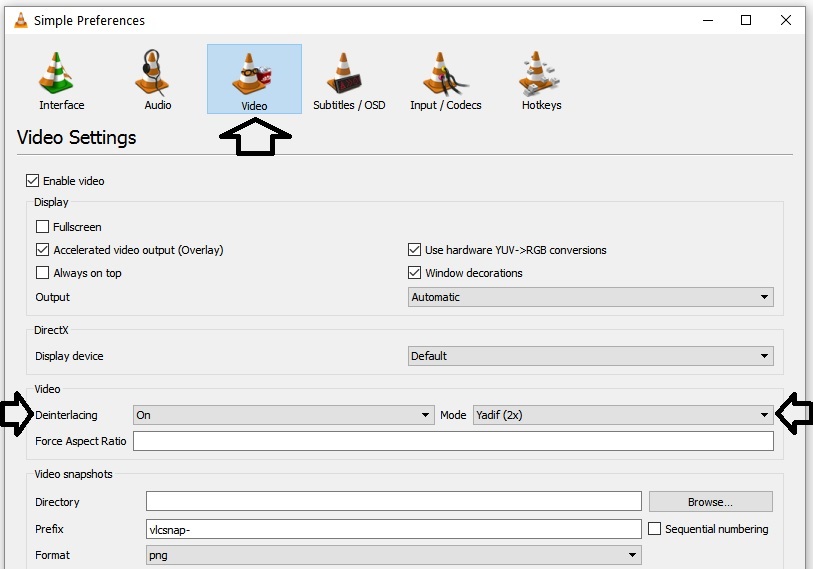
  • Deinterlacing to Yadif2


Jennifer Nelson 25/09/2013 14:49:59Answers: 1
Will the DVDs/CDs be compatible with all players?

Media SOS 25/09/2013 14:53:19

Rest assured, we take great care in ensuring the seamless transfer of your materials. Once converted to CD/DVD format, they should be compatible with the majority of players, barring exceptionally old equipment or those designed exclusively for master discs. If you encounter any hiccups, simply press the menu button on your remote control and follow the provided instructions.


For most modern computers, playing CD-R/DVD-R discs shouldn't pose a problem. However, if you do face compatibility issues, fear not! We recommend installing VLC Media Player, a versatile solution that typically resolves such issues. Alternatively, you might consider trying a different computer or seeking assistance from a qualified technician to resolve any underlying computer-related matters.


Here's a handy video tutorial demonstrating how to play your CD/DVD materials:


Elaine Miller 25/09/2010 14:46:04Answers: 1
I have several old tapes and films that I'd like to digitise. What options do you offer for preserving them, and how do you handle any blank tapes or films?

Media SOS 25/09/2010 14:48:11

We offer to digitise each tape onto a separate CD, DVD, Blu-ray, or USB stick, or provide a downloadable link according to your preference. 

To ensure optimal quality, we allocate up to 80 minutes per CD and up to 2 hours per DVD. Rest assured, there's no charge for blank tapes, films, or discs. If any turn out to be blank throughout, we promptly issue a refund.

We understand the value of your tapes and films, which is why we include one tape repair for each tape and three for cine films, covering almost all scenarios. Your precious memories are in good hands with us.

For further details, please refer to our Terms & Conditions page.


Showing 11 to 18 of 18 (2 Pages)